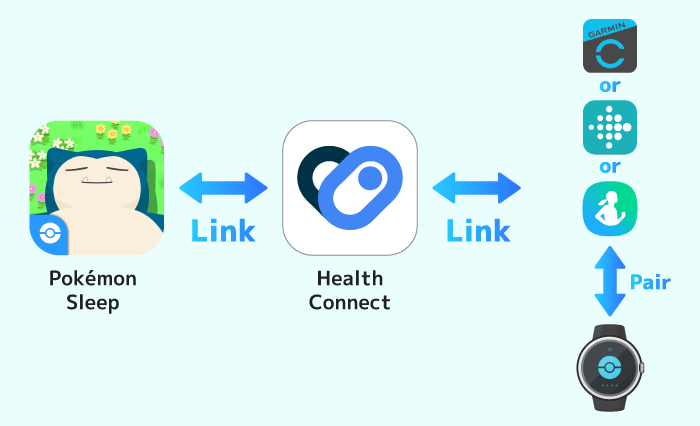
In order to sync your sleep data with Pokémon Sleep, you’ll need to link your account with Health Connect and also link Health Connect with either the Google Health, Samsung Health, or Garmin Connect.
Note: Apple Watch cannot be linked with Health Connect.
Note: Compatible with Android OS 14 or later.
Note: See below for compatible devices.
1
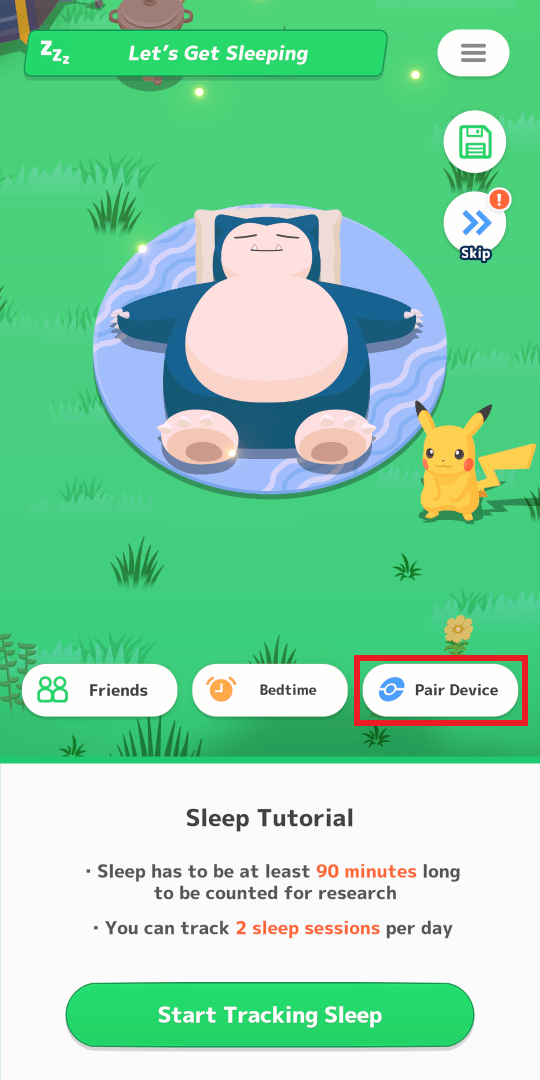
① Tap “Pair Device.”
2
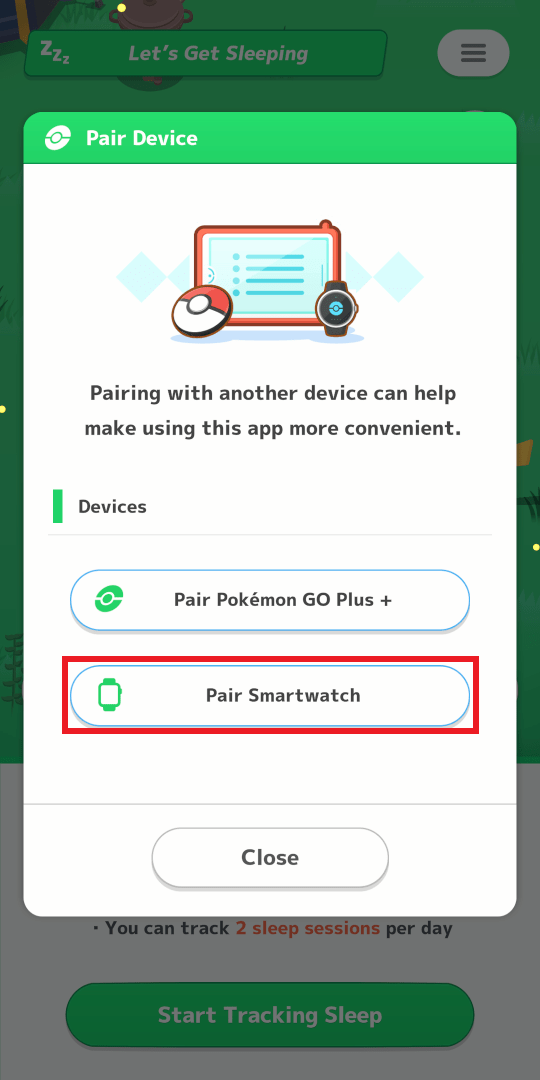
② Tap “Pair Smartwatch.” Please check here to see how to install Health Connect.
3
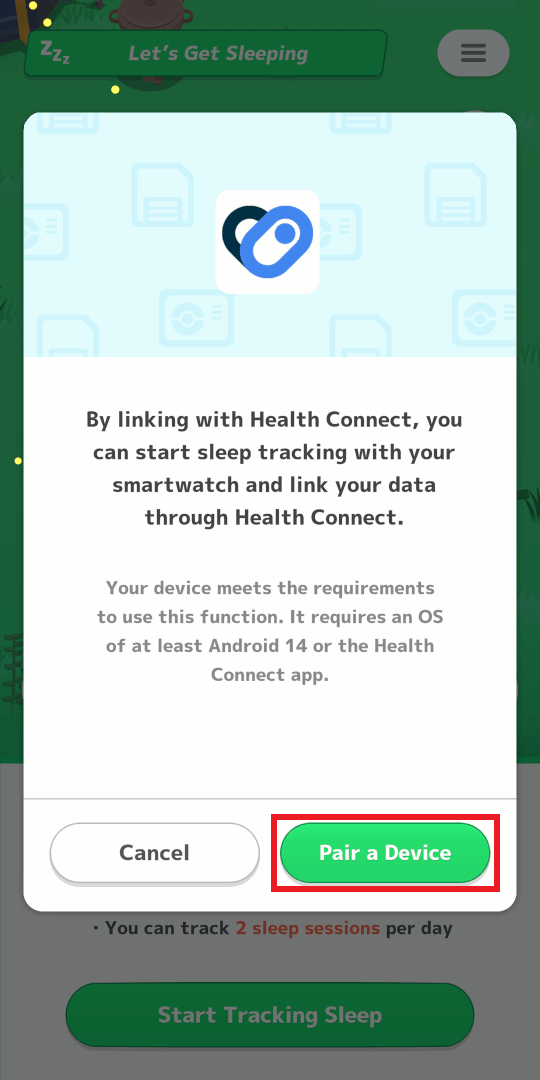
③ Tap “Pair a Device.”
4
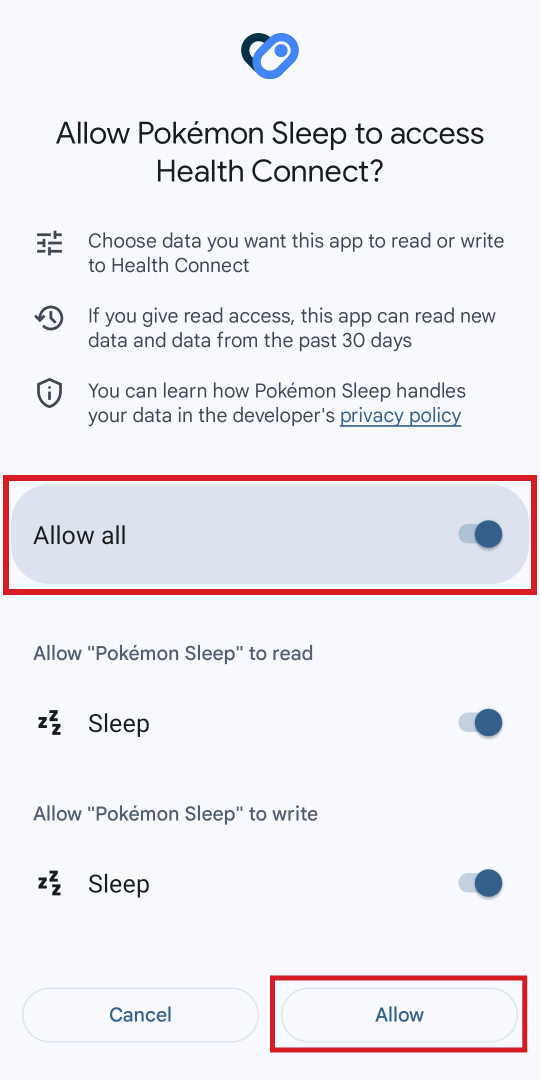
④ Tap “Allow all” and then tap “Allow.”
Note: If you see a message that says “Unable to link data,” please check How to Grant Access to Health Connect further down this page.
5
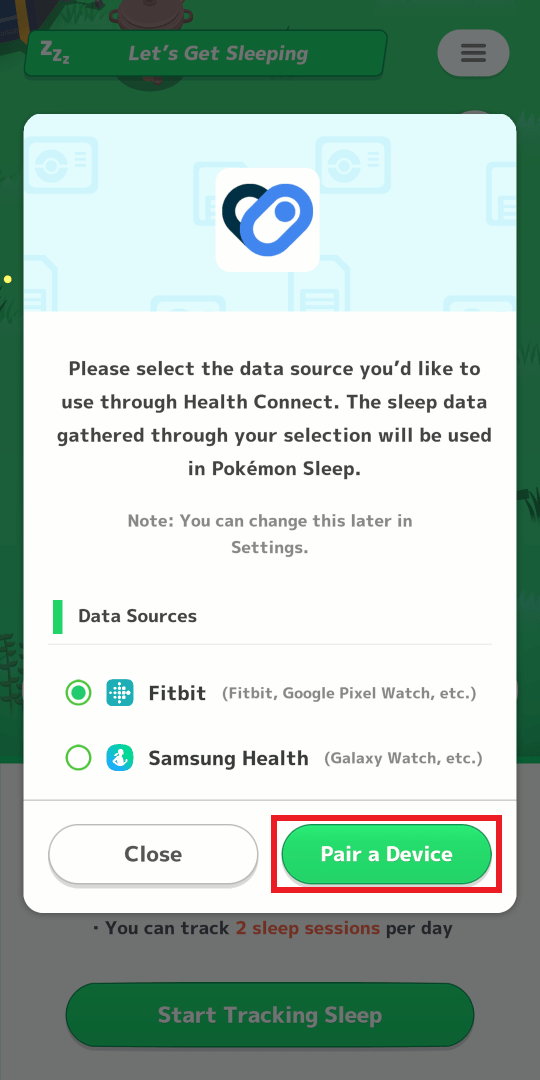
⑤ Tap the appropriate data source, and then tap “Pair a Device.”
6
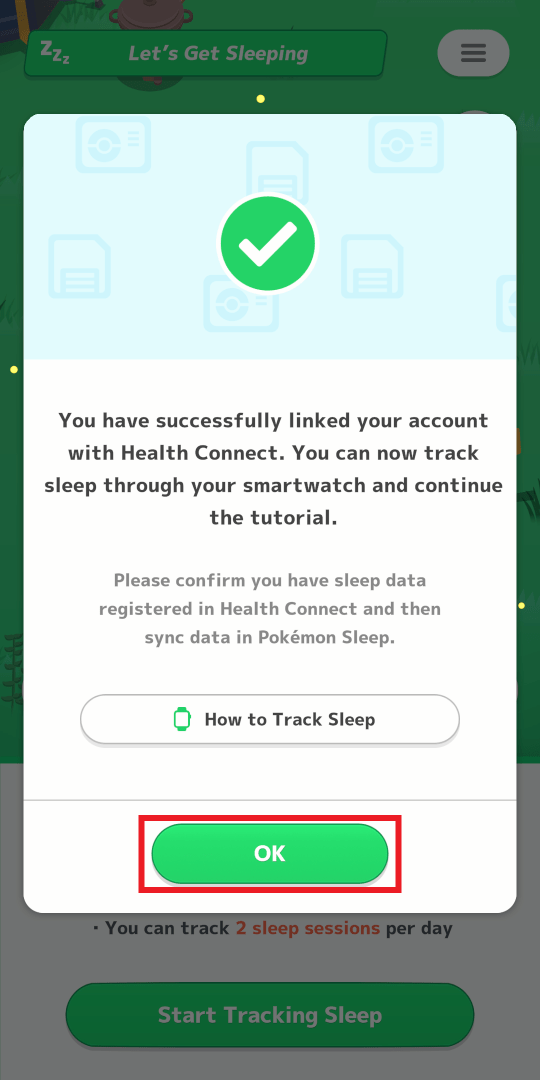
⑥ If the above screen is displayed, your pairing is complete. Tap “OK,” and then follow Step ⑦ and beyond in the tutorial.
7
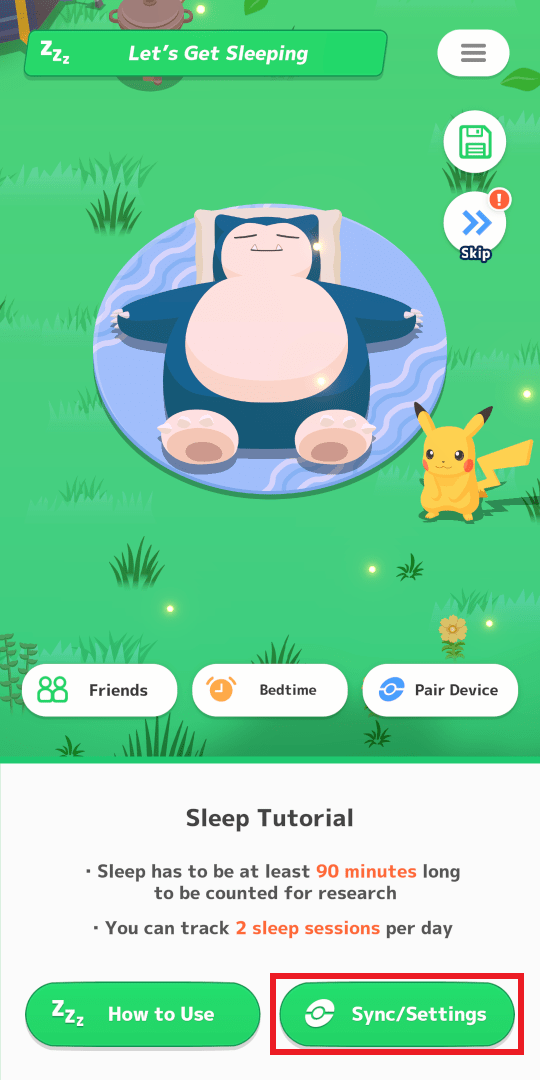
⑦ After sleep tracking, tap “Sync/Settings.” Please check here for instructions on how to track sleep.
8
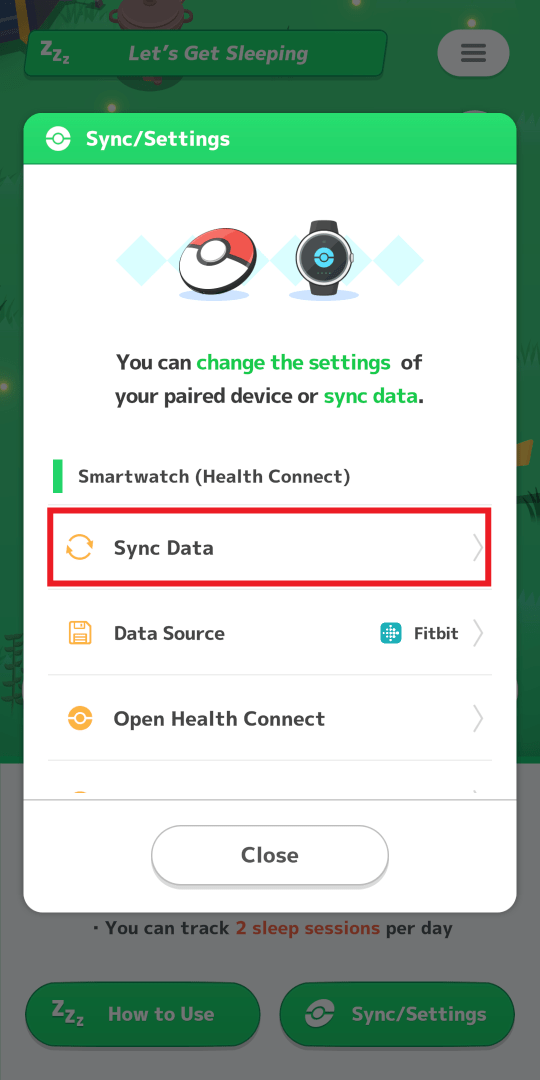
⑧ Tap “Sync Data.”
9
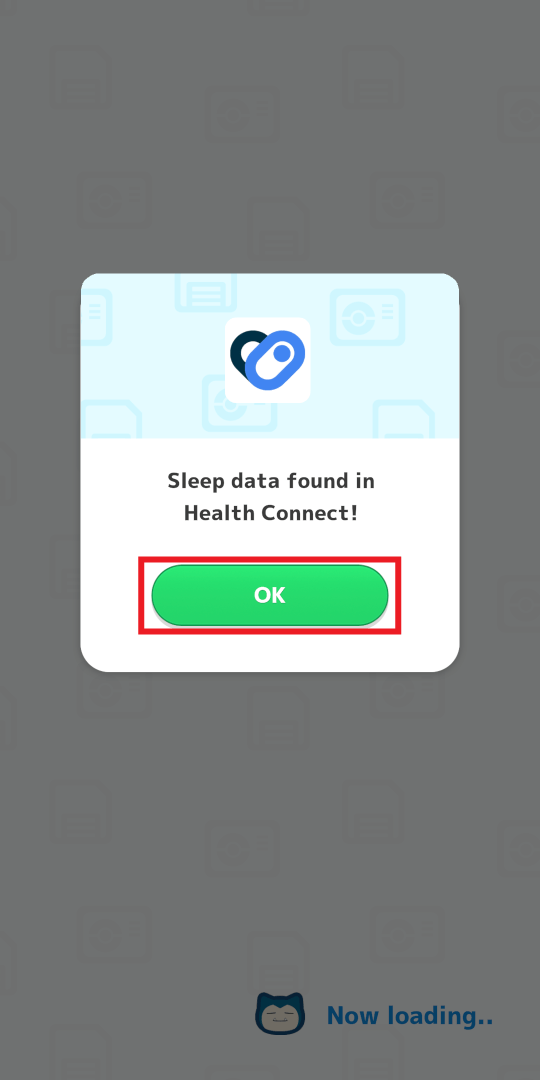
⑨ Tap “OK.”
10
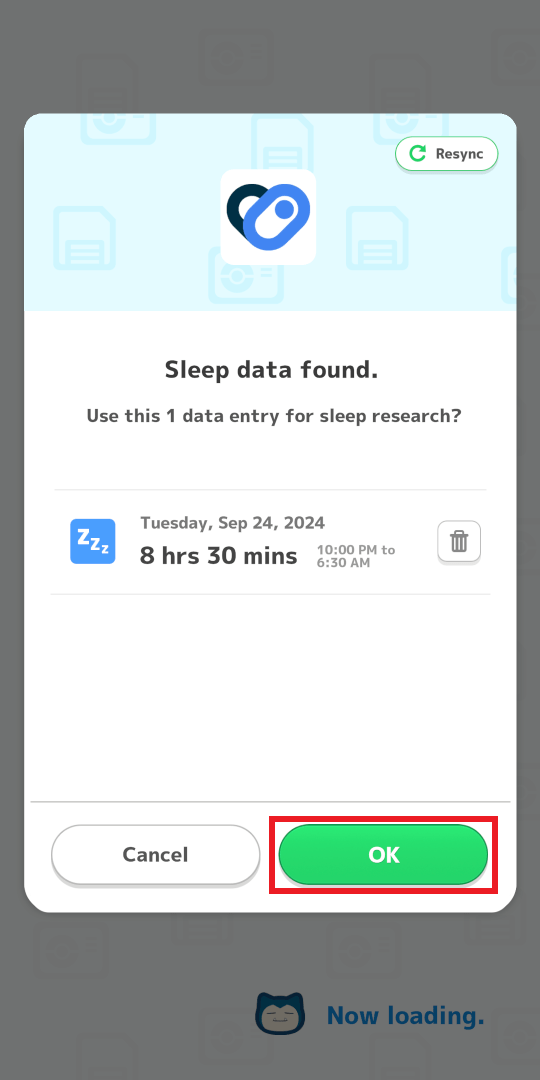
⑩ Delete any sleep data you don’t want to use for sleep research, and then tap “OK.”
11
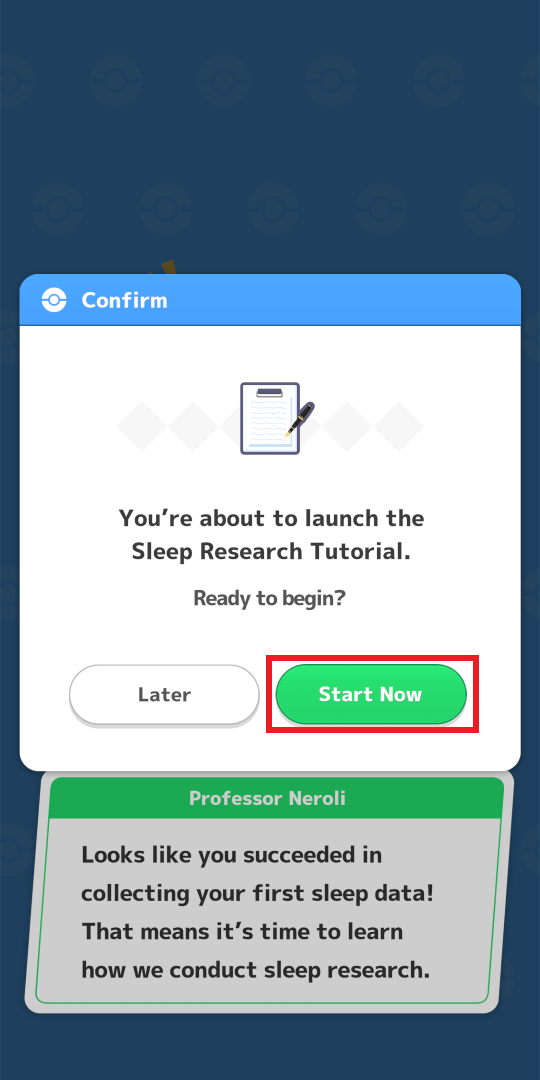
⑪ Tap “Start Now,” and your sleep research will begin.
1
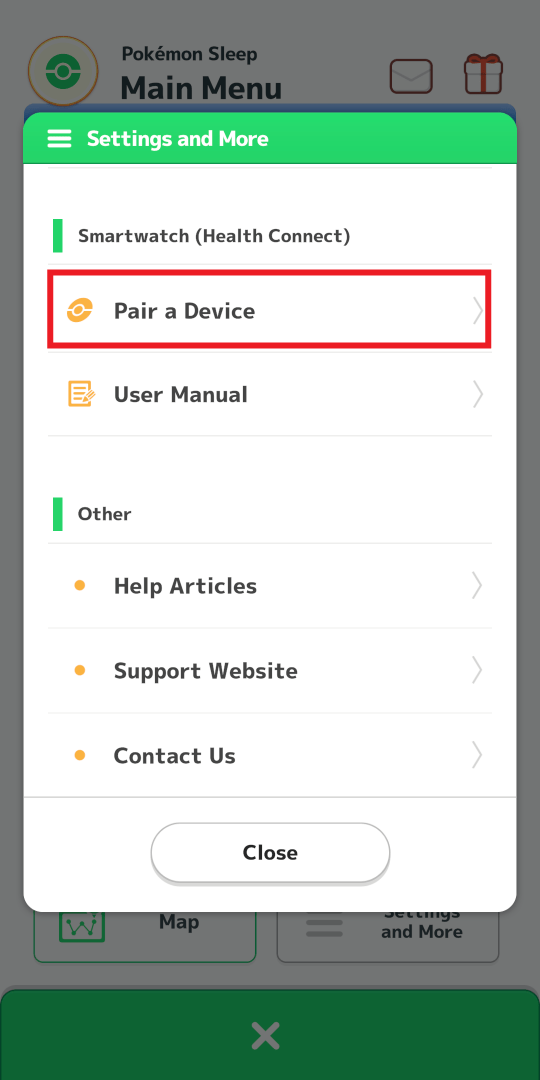
① In the “Settings and More” section of the Main Menu, tap “Pair a Device.”
2
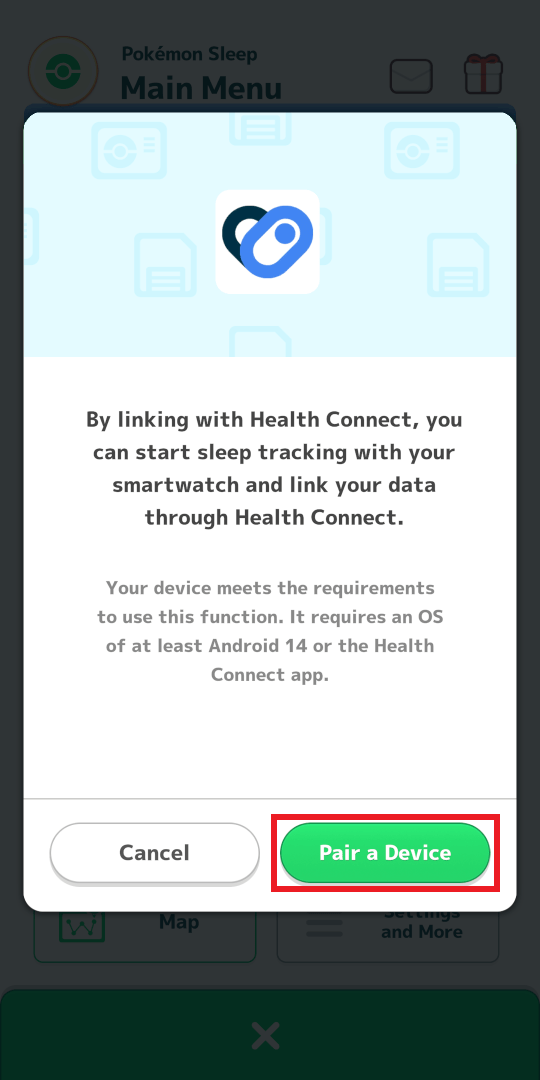
② Tap “Pair a Device.”
3
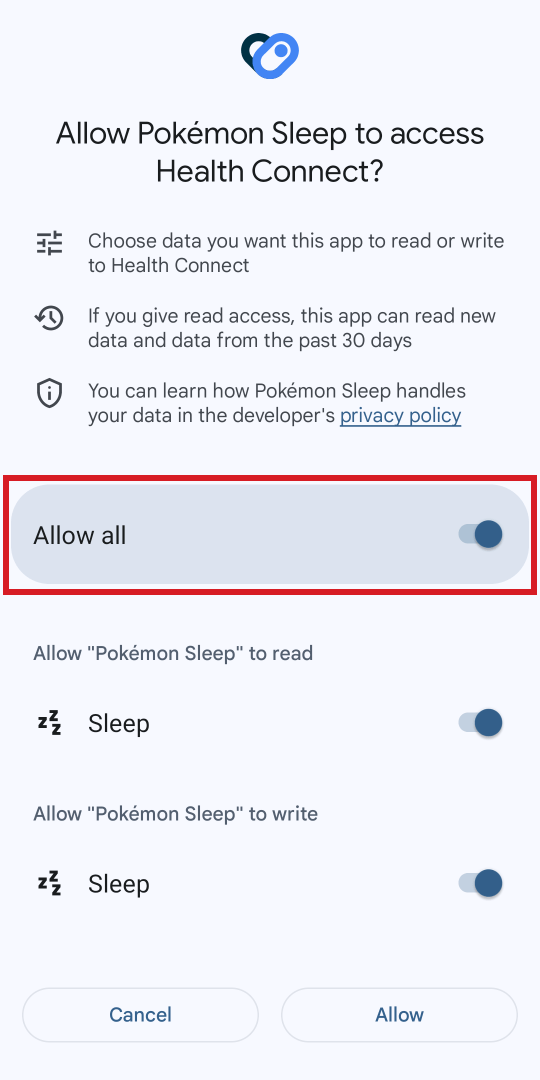
③ Tap “Allow all” and then tap “Allow.”
Note: If you see a message that says “Unable to link data,” please check How to Grant Access to Health Connect further down this page.
4
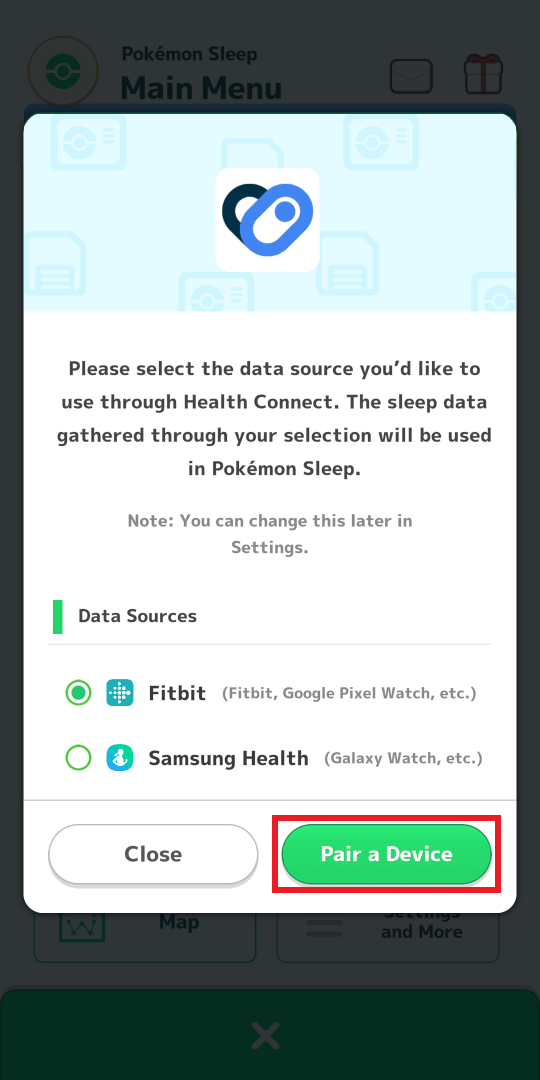
④ Tap the appropriate data source, and then tap “Pair a Device.”
5
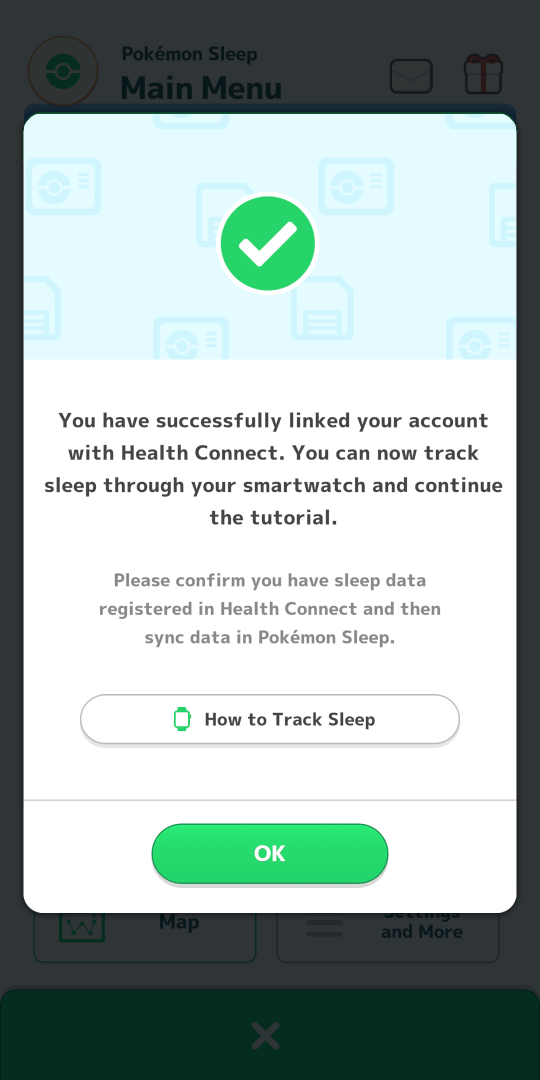
⑤ If the above screen is displayed, your pairing is complete.
1
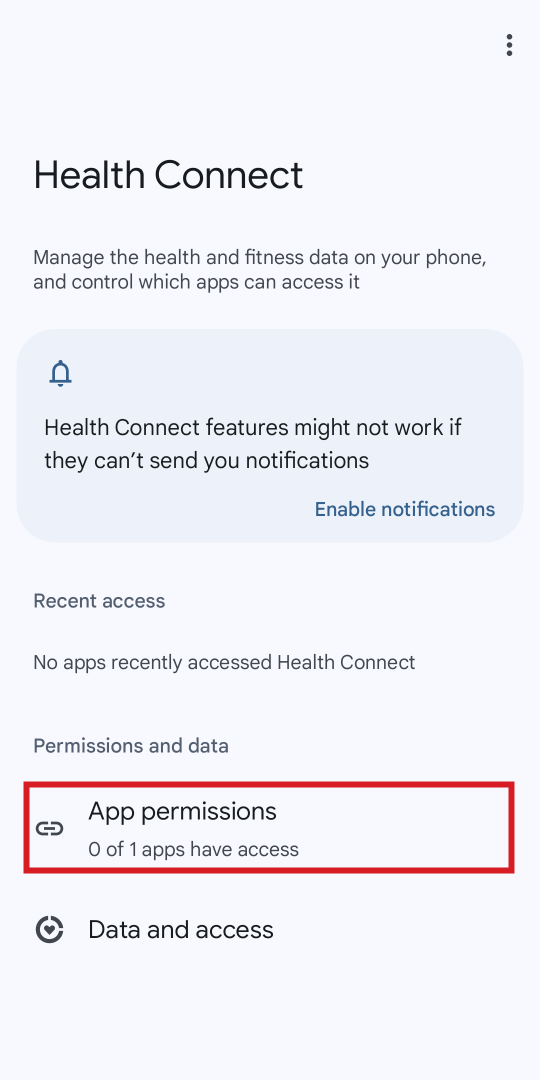
① Open Health Connect on your device, and then tap “App permissions.”
2
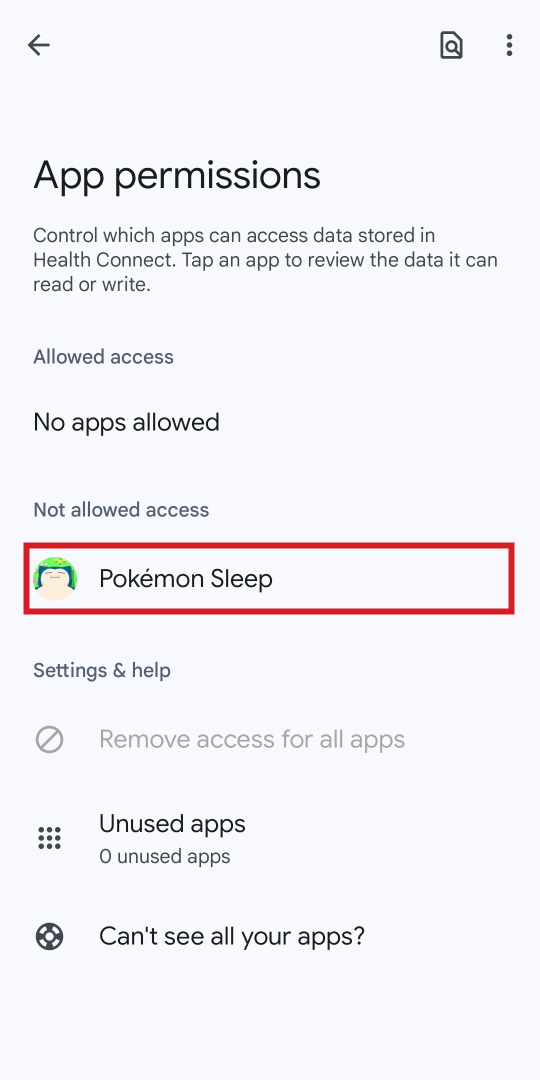
② Tap “Pokémon Sleep.”
3
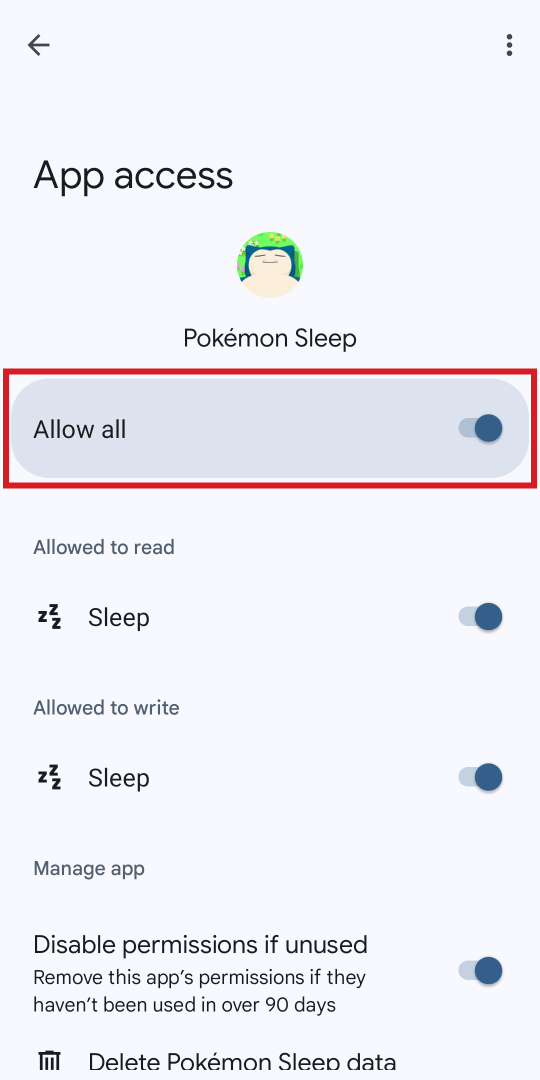
③ Tap “Allow all.”
1

① Set up the Google Health. Please check here for setup instructions.
2
② Link the Google Health with Health Connect. Please check the “Connect your Apps” section here to see how.
3
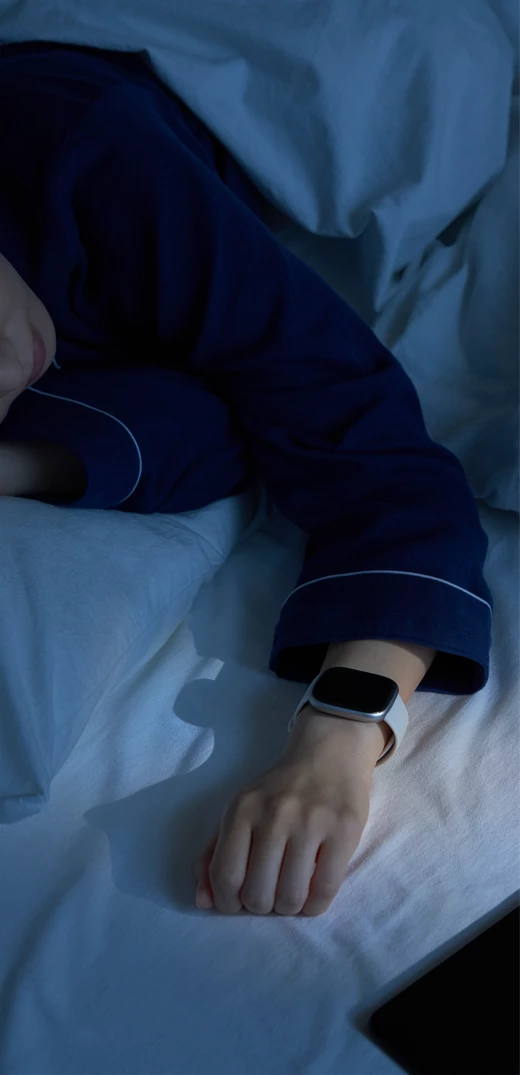
③ Your Fitbit or Google Pixel Watch will automatically detect your sleep if you go to bed wearing it. Please check here for details.
1

① Set up Samsung Health. Please check the instructions in the Samsung Health app for more detailed directions. You can download the app here.
2
② Link Samsung Health with Health Connect. Please check the “Connect your Apps” section here to see how.
3
③ Your Galaxy Watch will automatically detect your sleep if you go to bed wearing it. Please check here for details.
1

① Set up Garmin Connect. Please check the instructions in the Garmin Connect app for more detailed directions. You can download the Garmin Connect app here.
2
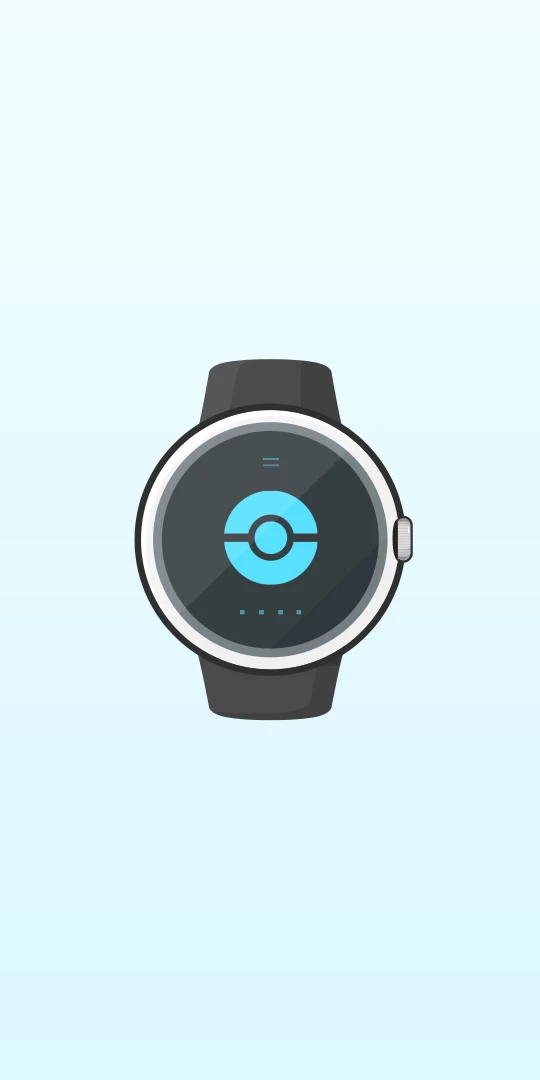
② Pair your Garmin device with Garmin Connect. Please check here for setup instructions.
3
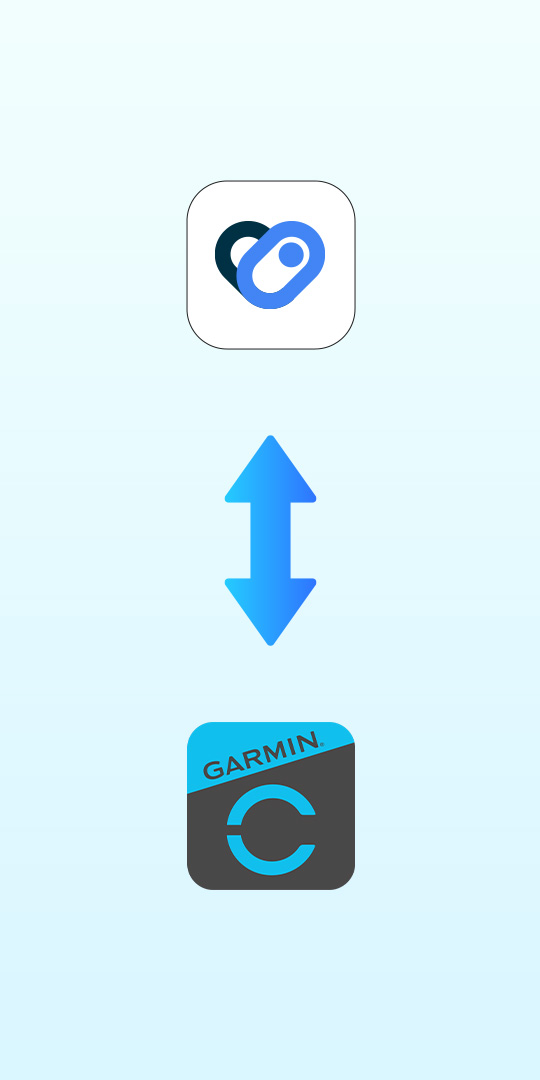
③ Link Garmin Connect with Health Connect. Please check the “Connect your Apps” section here to see how.
4

④ Your Garmin device will automatically detect your sleep if you go to bed wearing it. Please check here for details.
1
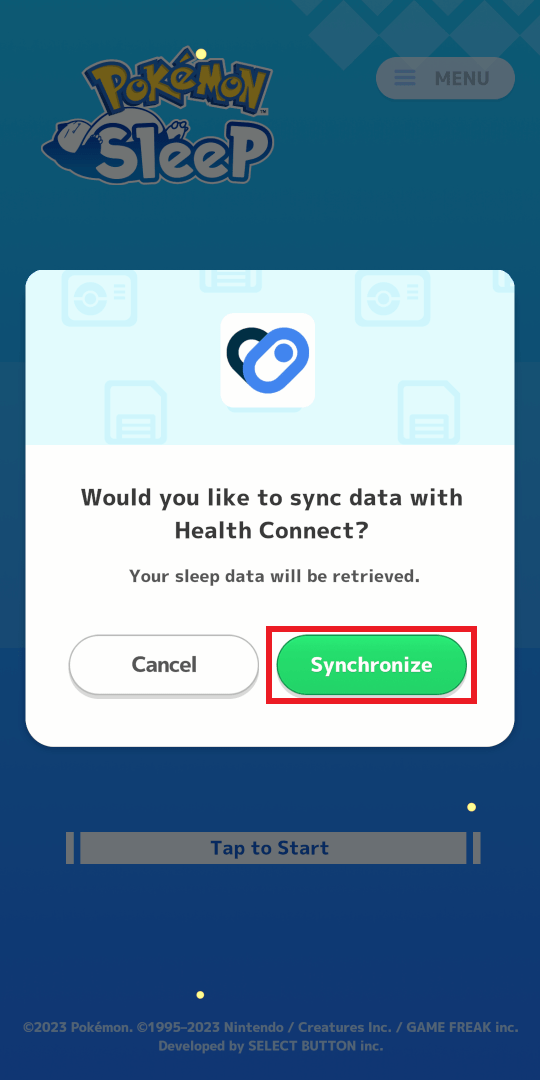
① To link from the title screen, open Pokémon Sleep, and when the above screen is displayed, tap “Synchronize.” Skip to Step ④.
2
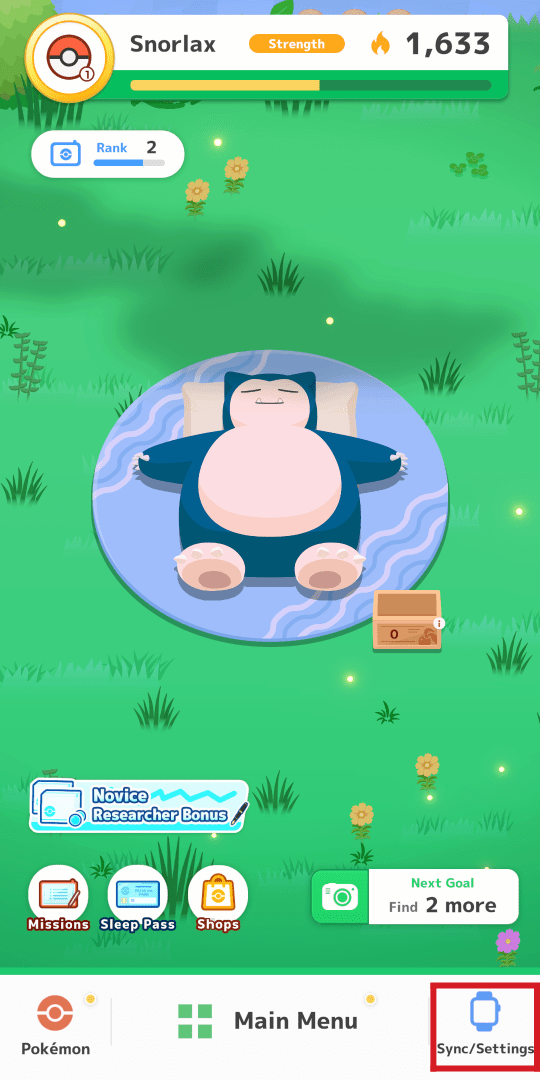
② To link from the home screen, tap “Sync/Settings” at the bottom of the screen.
3
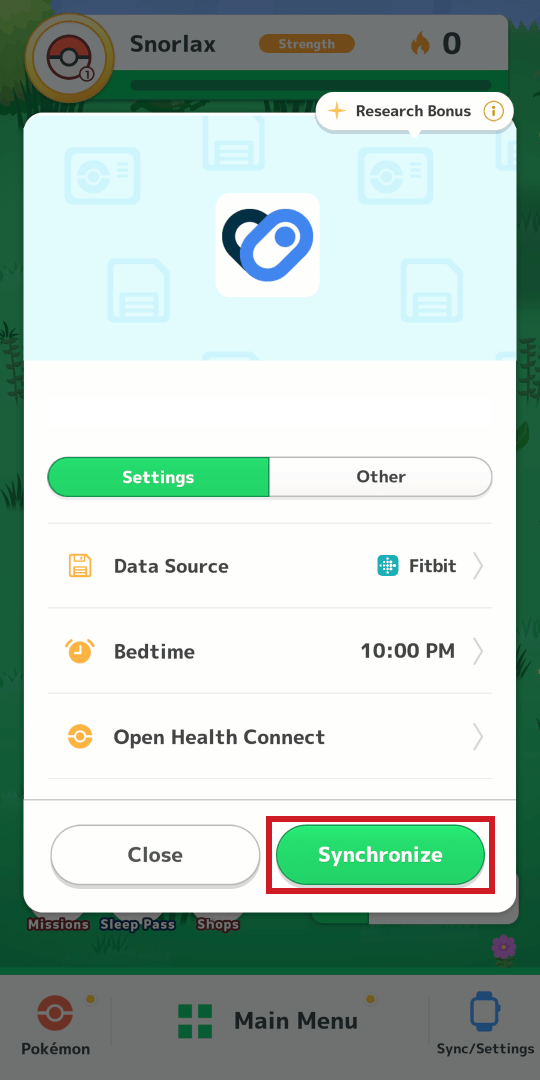
③ Tap “Synchronize.”
4
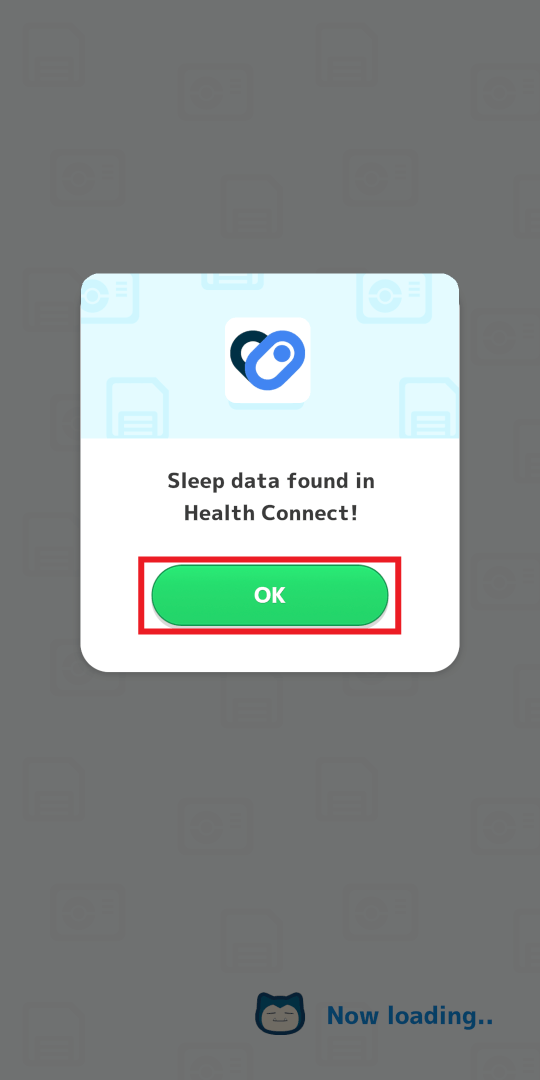
④ Tap “OK.”
5
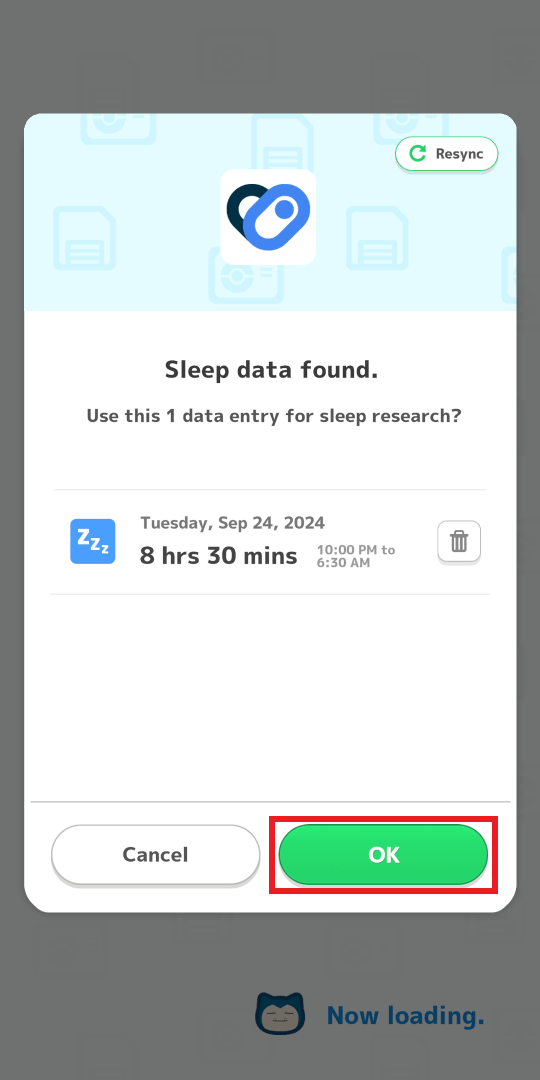
⑤ Delete any sleep data you don’t want to use for sleep research, and then tap “OK.”
6
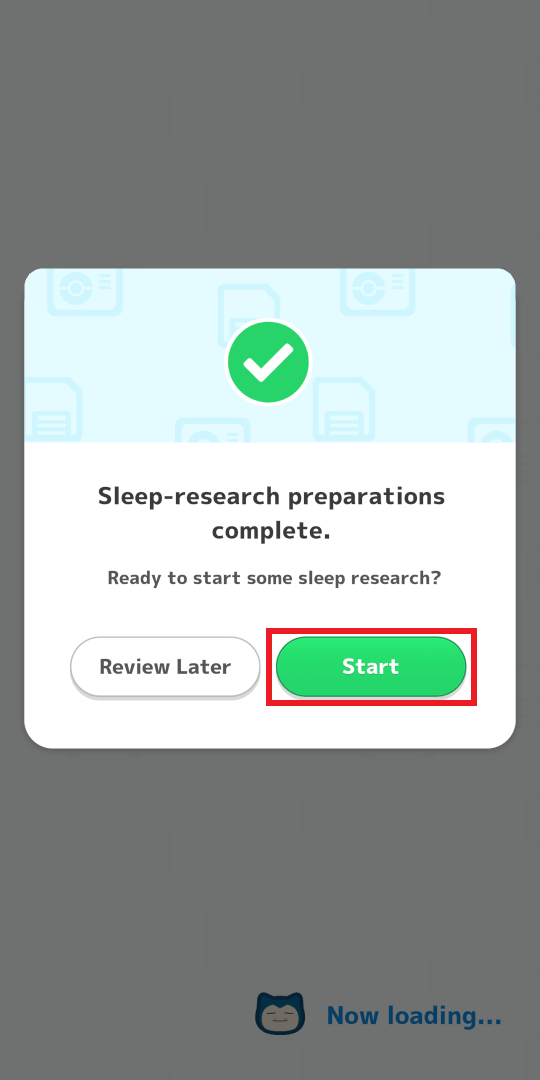
⑥ Tap “Start,” and your sleep research will begin.
1
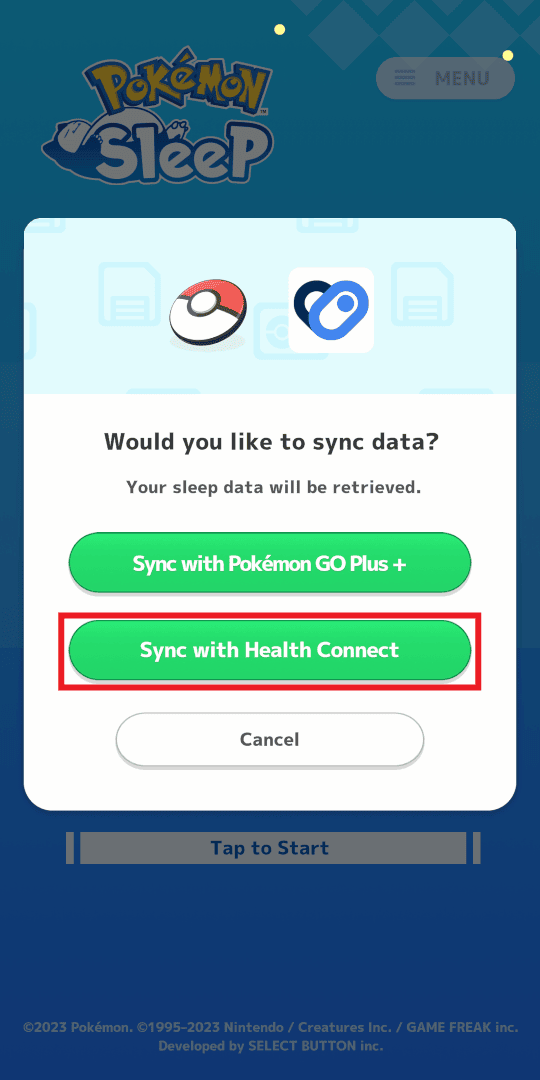
① To link from the title screen, open Pokémon Sleep, and when the above screen is displayed, tap “Sync with Health Connect.”
2
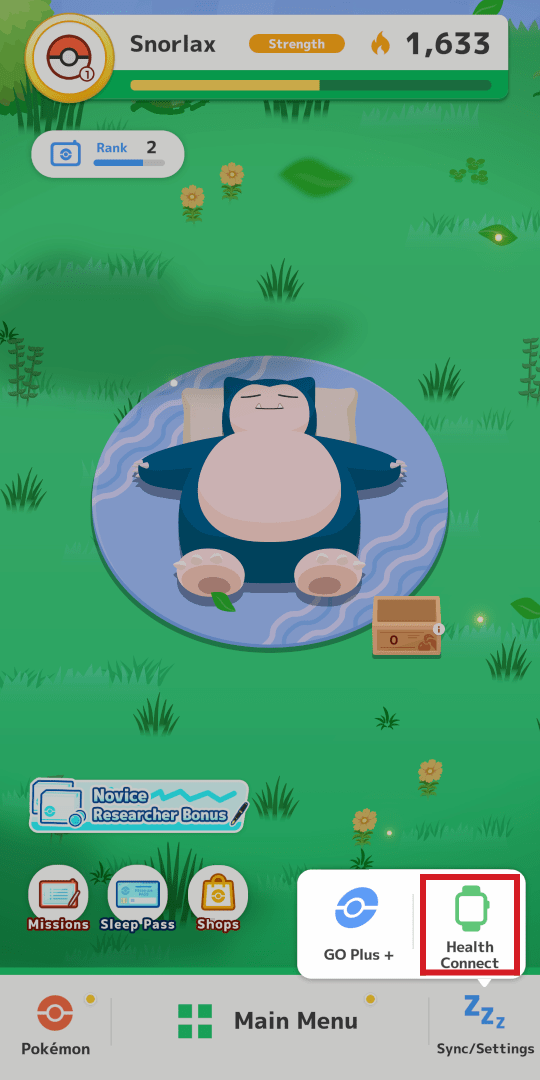
② To link from the home screen, tap “Health Connect” at the bottom of the screen.
3
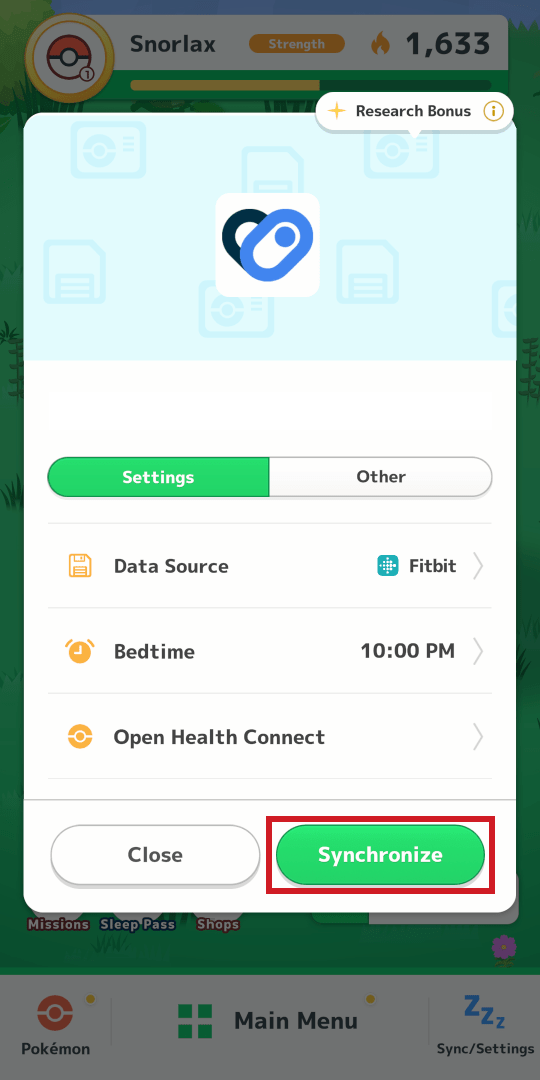
③ Tap “Synchronize.”
4
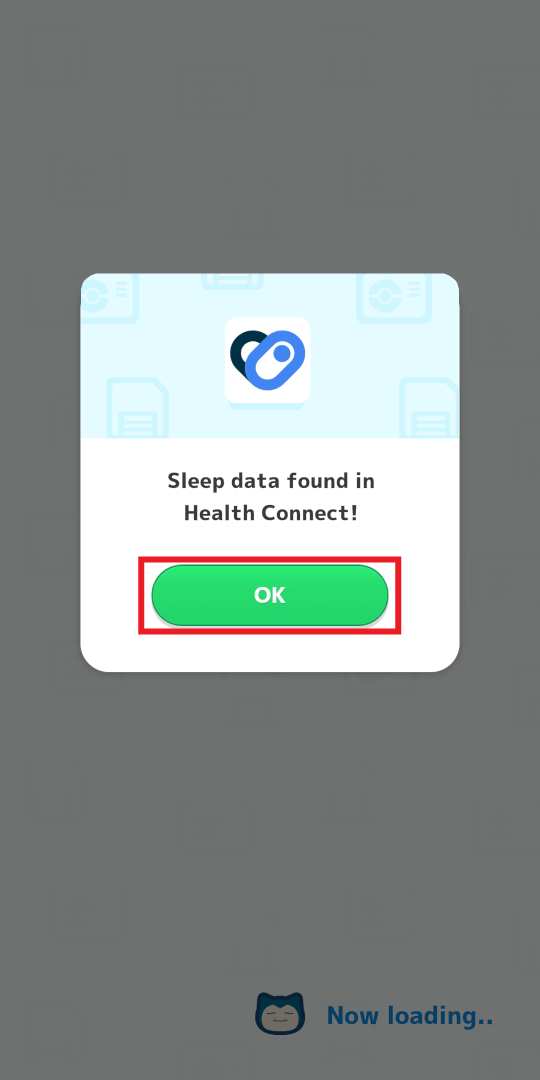
④ Tap “OK.”
5
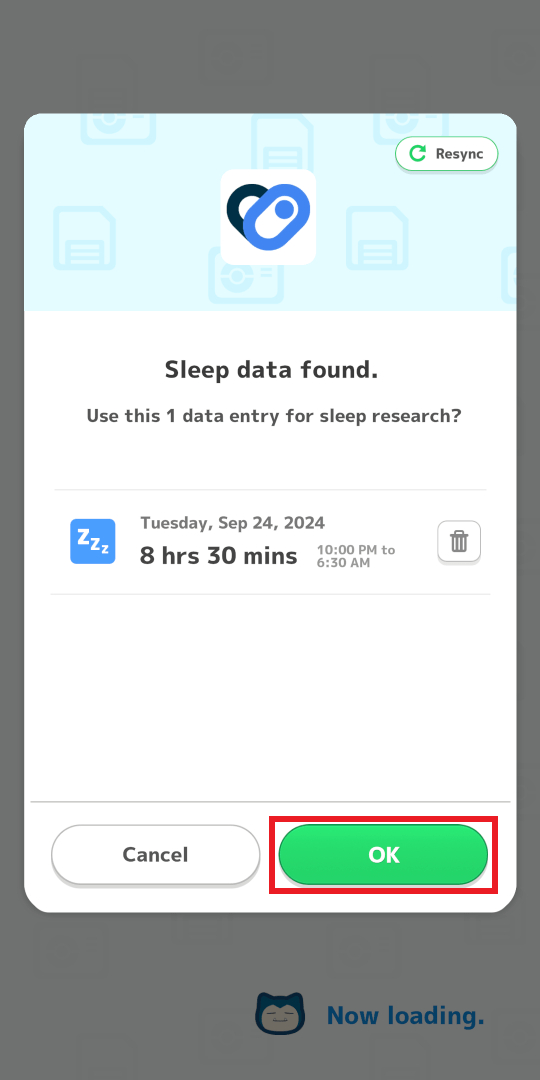
⑤ Delete any sleep data you don’t want to use for sleep research, and then tap “OK.”
6
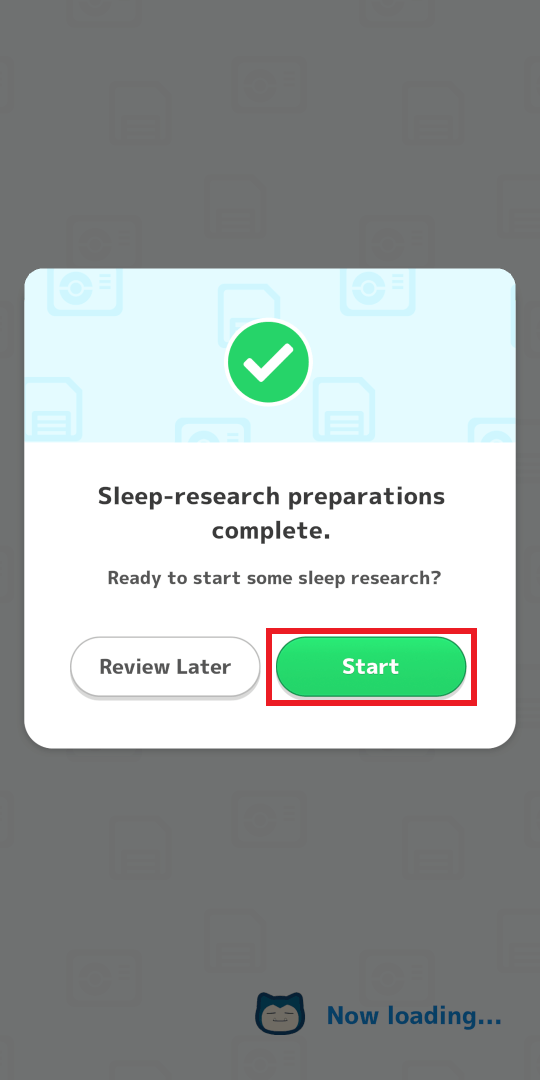
⑥ Tap “Start,” and your sleep research will begin.
1
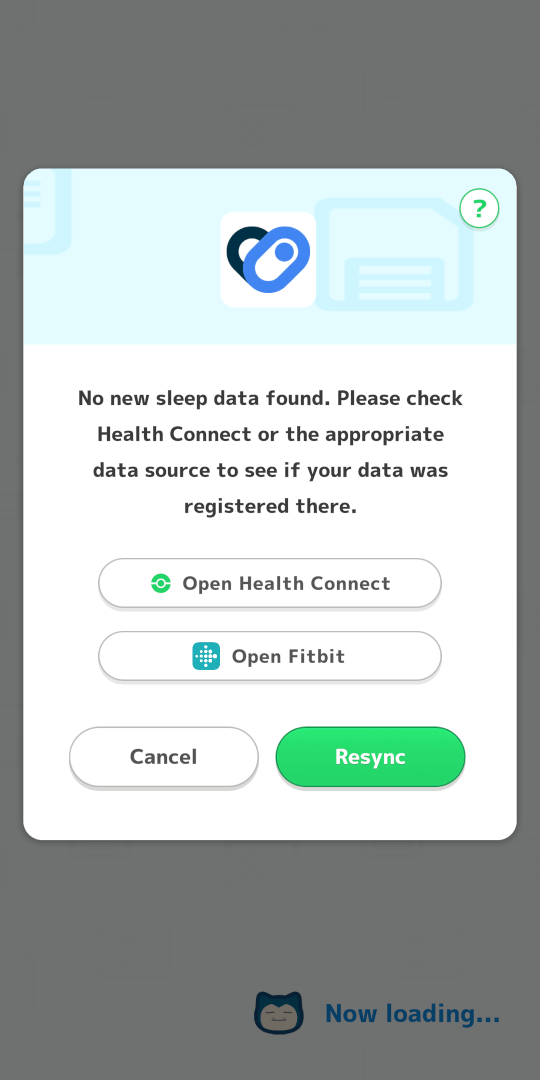
① If the above pop-up is displayed, proceed to Step ②.
2
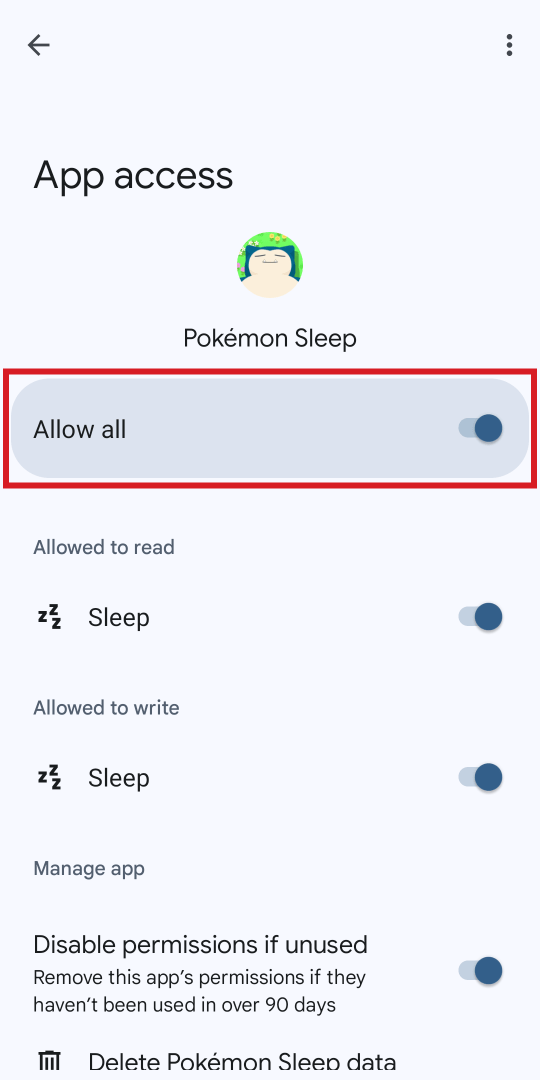
② Check to see if Pokémon Sleep has permission to access your sleep data from Health Connect. Please check here to see how to grant access.
3
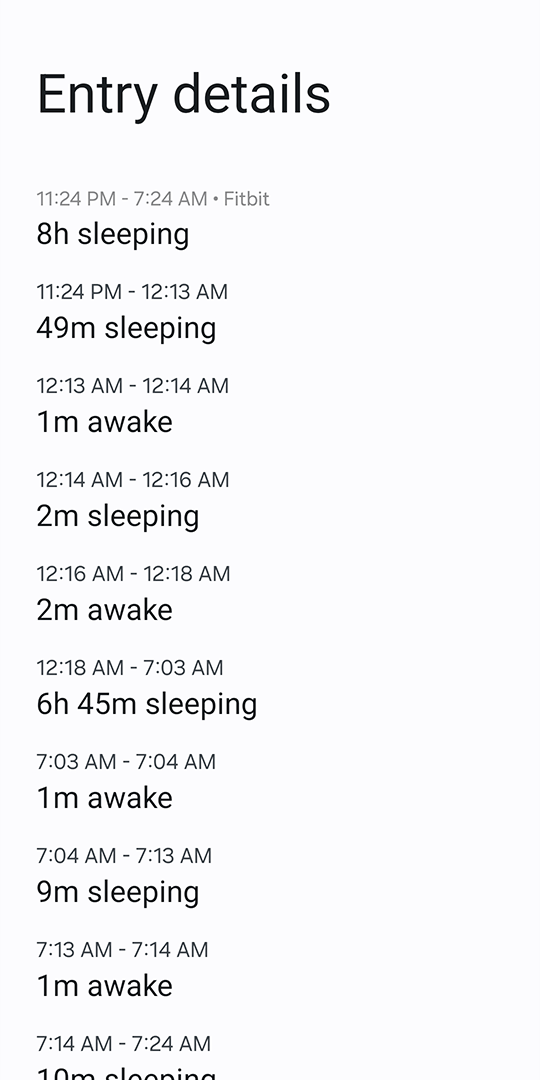
③ Check Health Connect to see if your sleep data has been registered there. Please check here to see how.
Note: Only sleep data tracked after pairing with Pokémon Sleep can be synced.
Note: Sleep data that was input manually will not be synced.
4
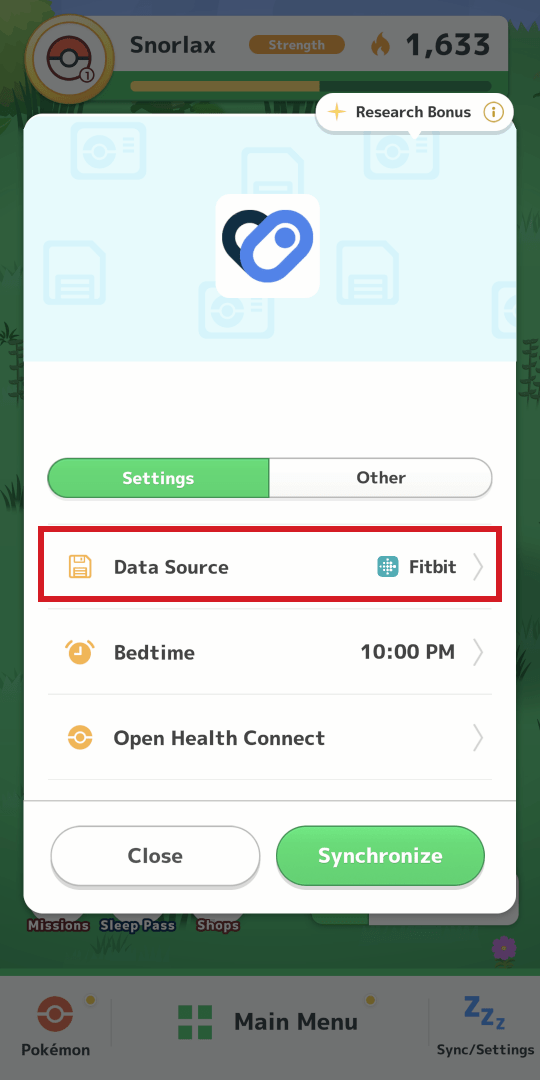
④ Tap “Sync/Settings” on the bottom of the home screen, and check to see if the data source is correct.
1
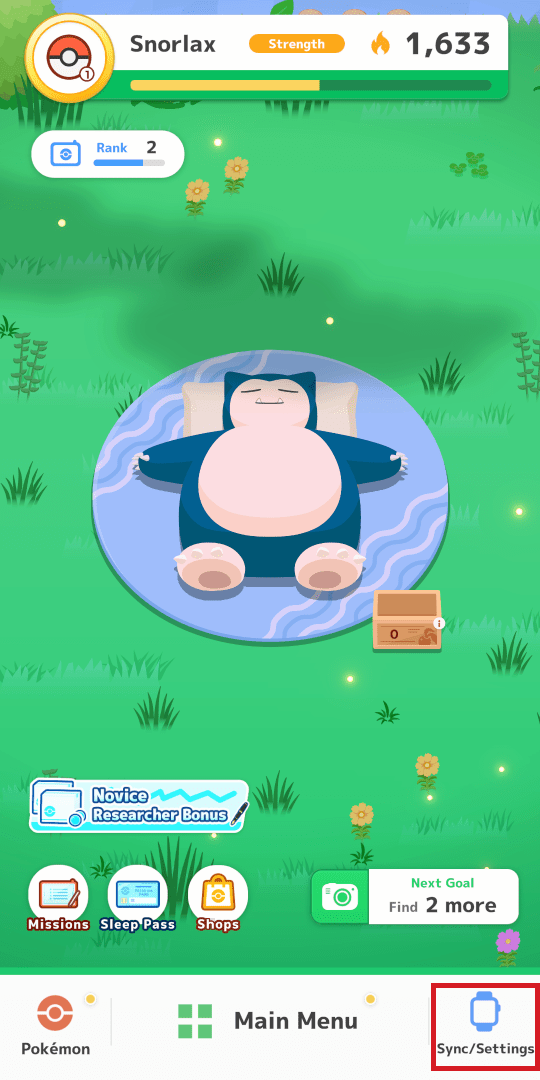
① To link from the home screen, tap “Sync/Settings” at the bottom of the screen.
2
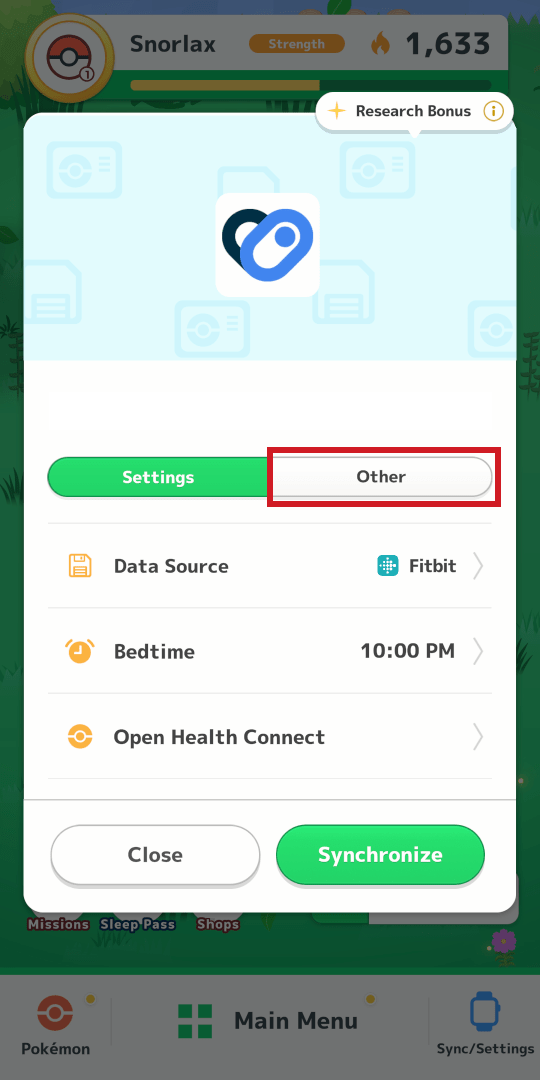
② Tap “Other.”
3
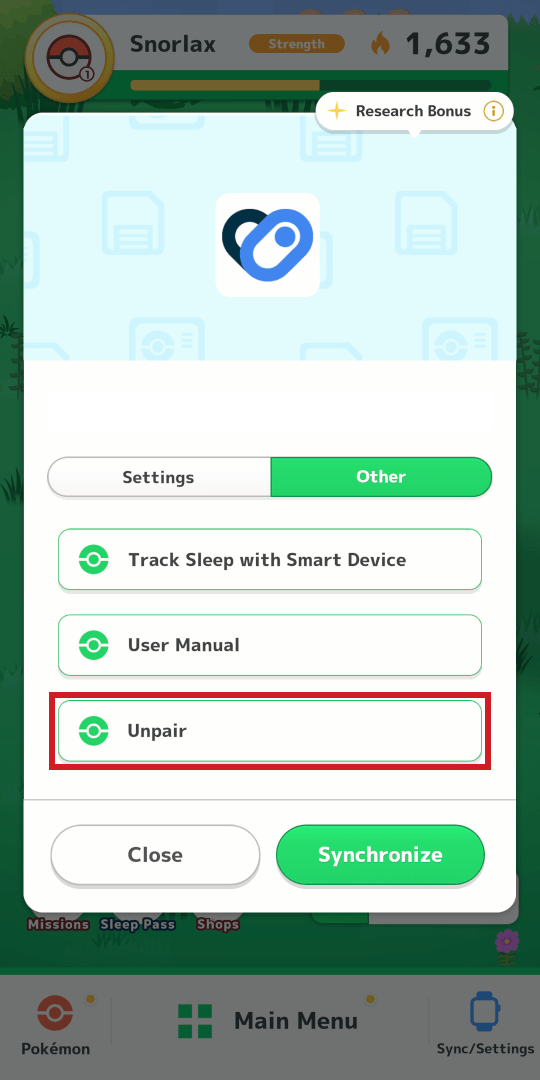
③ Tap “Unpair.”
4
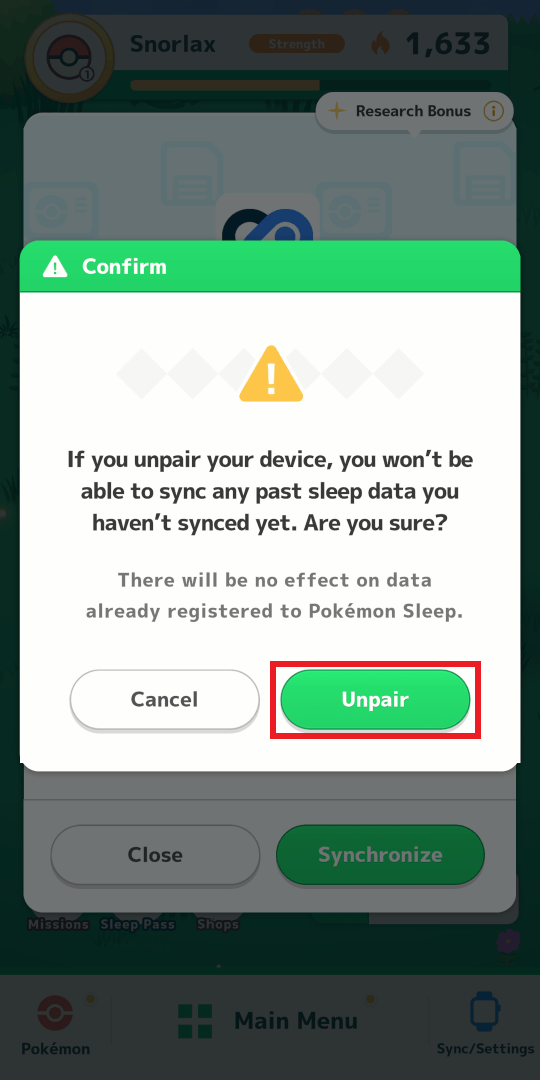
④ Tap “Unpair.”
5
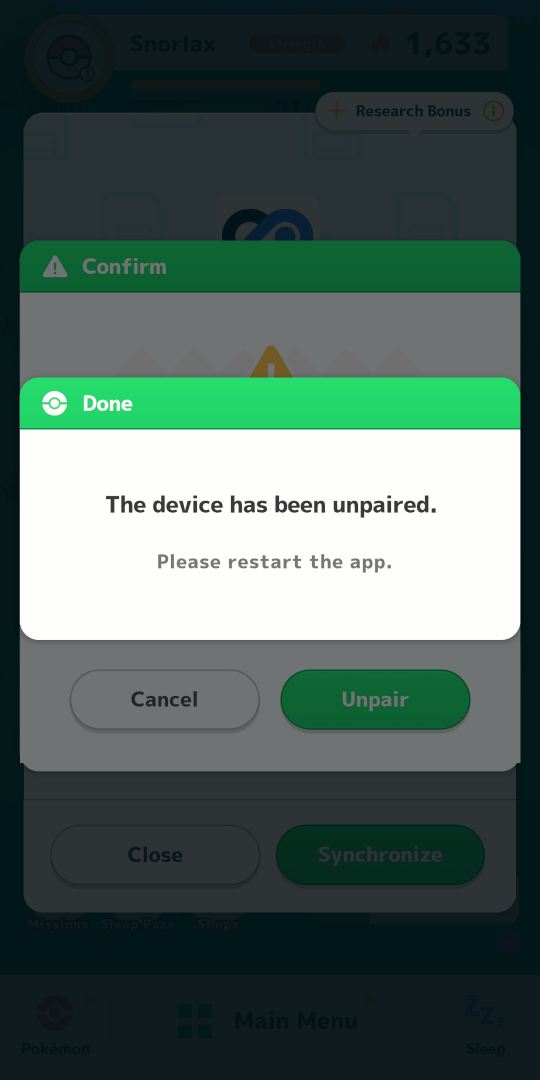
⑤ If the above screen is displayed, your unpairing is complete.
1
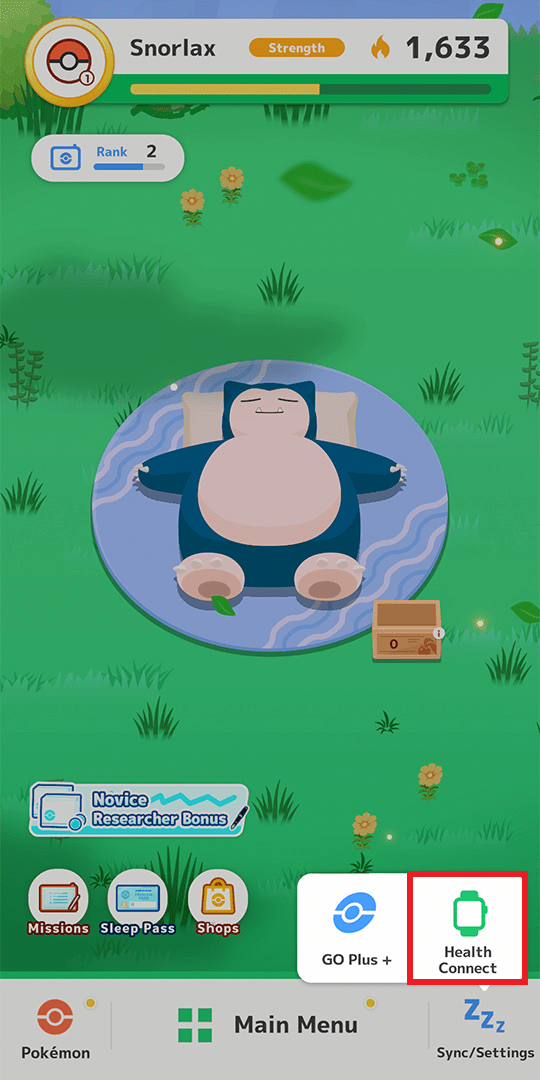
① Tap “Sync/Settings” on the bottom of the home screen, and then tap “Health Connect.”
2
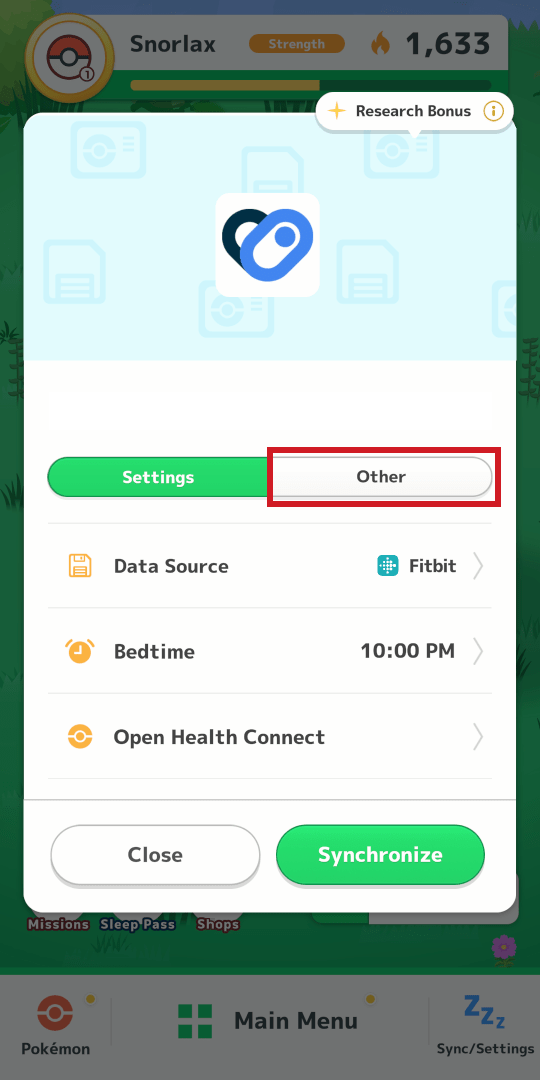
② Tap “Other.”
3
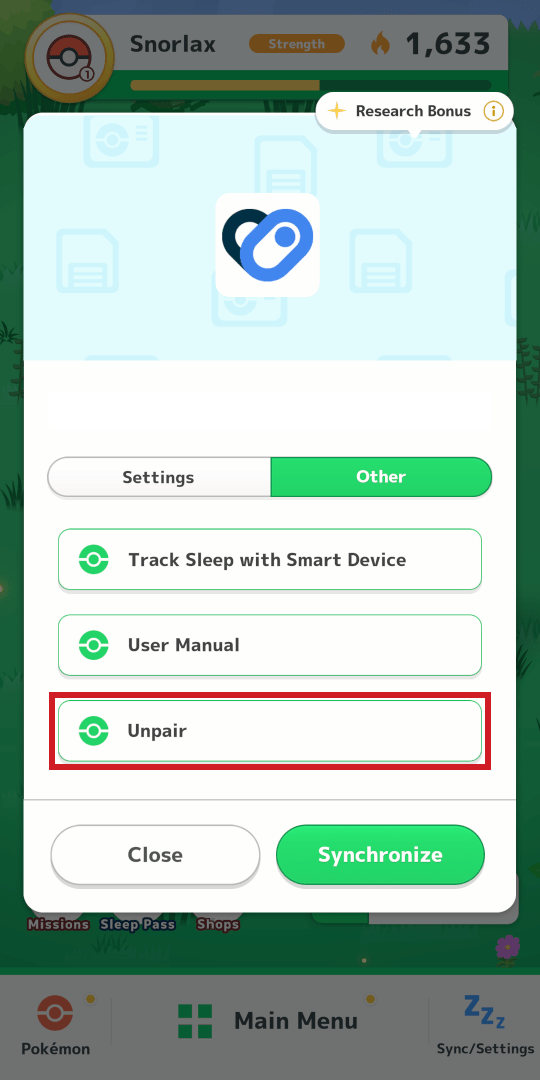
③ Tap “Unpair.”
4
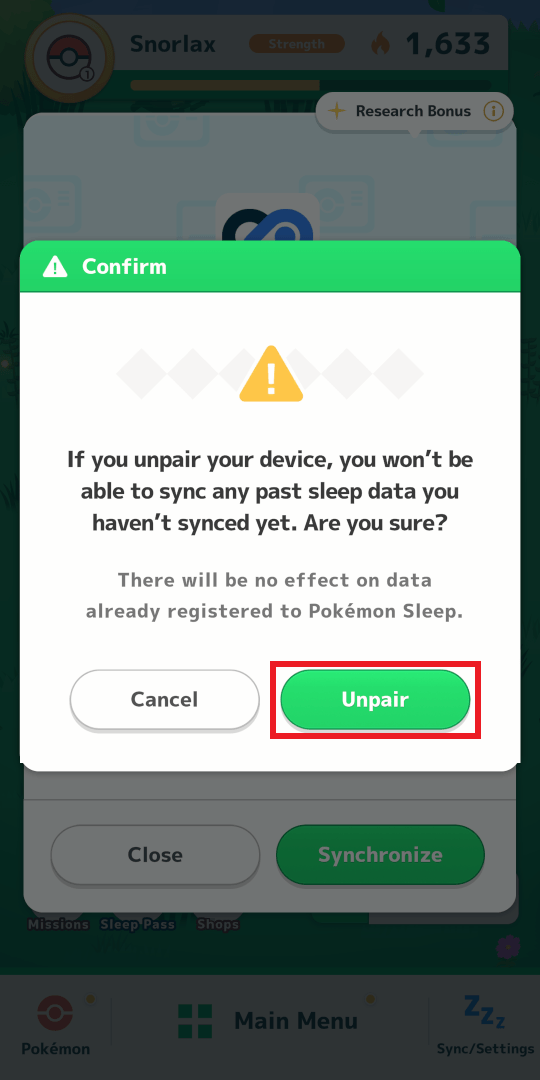
④ Tap “Unpair.”
5
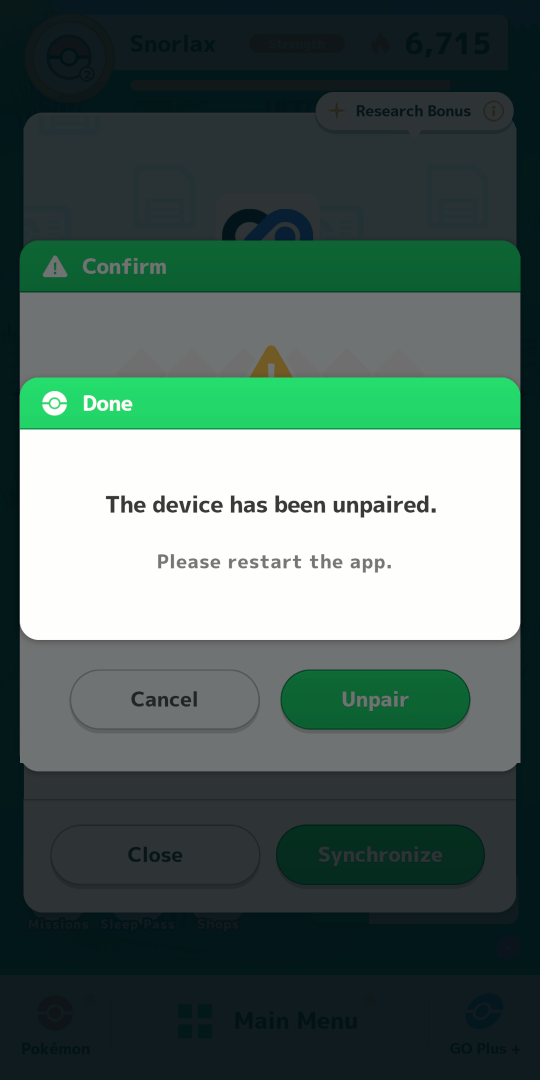
⑤ If the above screen is displayed, your unpairing is complete.